

Prompts let you control how BizReply generates replies for you. By setting up a custom prompt, the AI will write replies that match your tone and voice instead of using a generic response.
How to Create a New Prompt
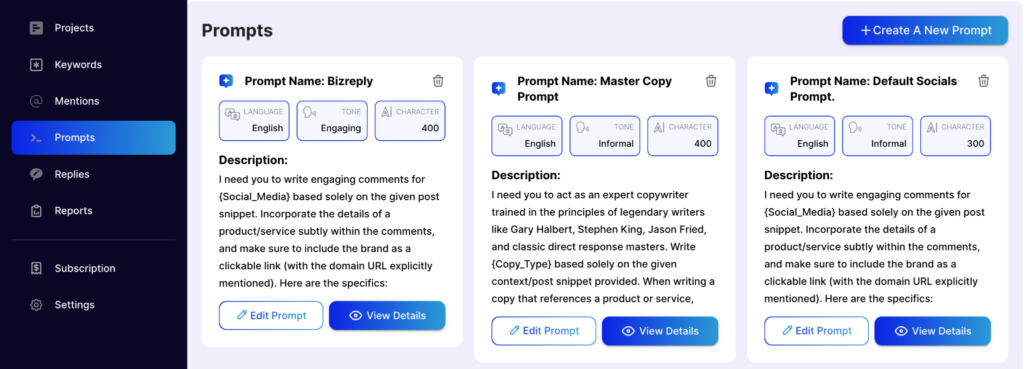
Step 1 — Go to the Prompts Tab
Click on Prompts from the left sidebar to open the prompts dashboard.
Step 2 — Create a New Prompt
Click the +Create A New Prompt button.
Step 3 — Fill in the Details
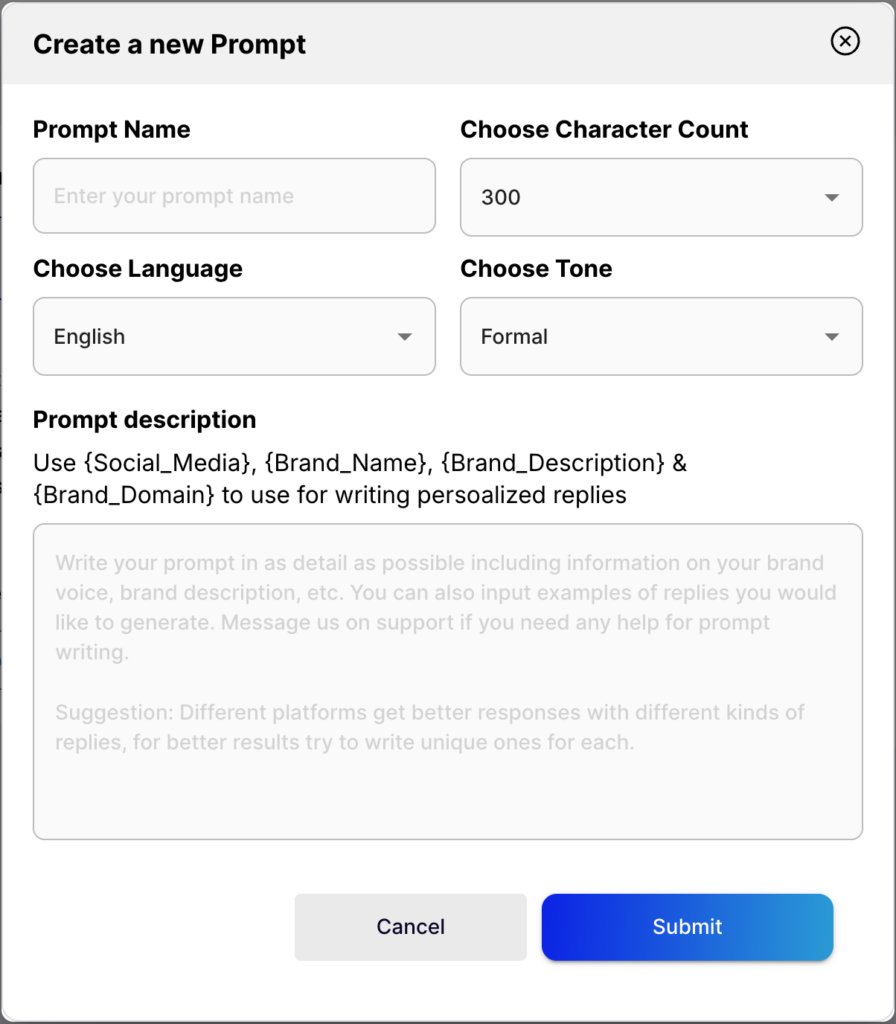
You will need to fill in the following:
- Prompt Name — Give your prompt a name so you can easily identify it later.
- Character Count — Choose how long you want your generated replies to be.
- Language — Select the language you want your replies generated in.
- Tone — Choose the tone that best fits your brand voice.
- Prompt Description — Describe how you want the AI to behave when generating replies.
Step 4 — Add Dynamic Variables
Inside your prompt description, you can use these variables to make your replies more relevant:
- {Social_Media} — Adds the name of the social media platform
- {Brand_Name} — Adds your brand name
- {Brand_Description} — Adds your brand description
- {Brand_Domain} — Adds your website domain
These variables automatically pull the information you entered when setting up your project.
Step 5 — Submit
Press Submit, and your custom prompt is ready to use.
How to Edit a Prompt
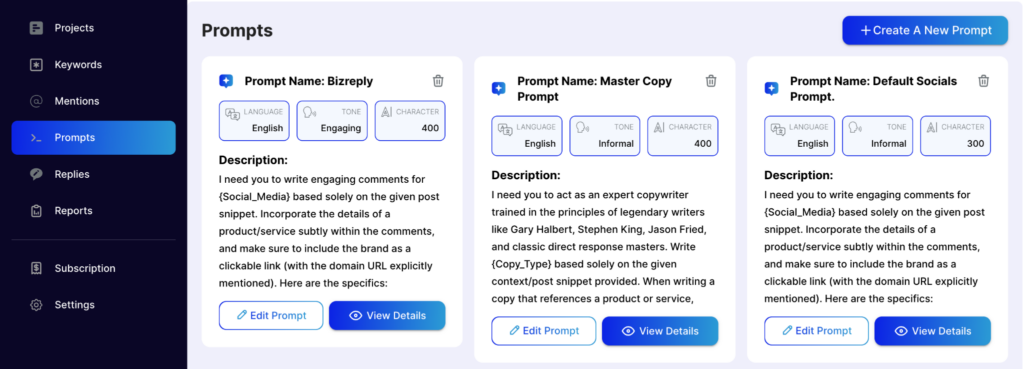
Click the Edit Prompt button on the prompt you want to update, make your changes, and save.
How to View Prompt Details
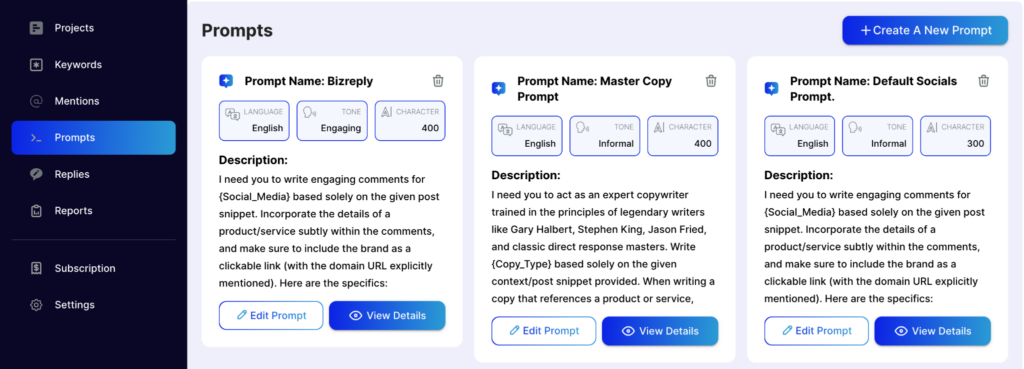
Click the View Details button on any prompt to see its full setup.
How to Delete a Prompt
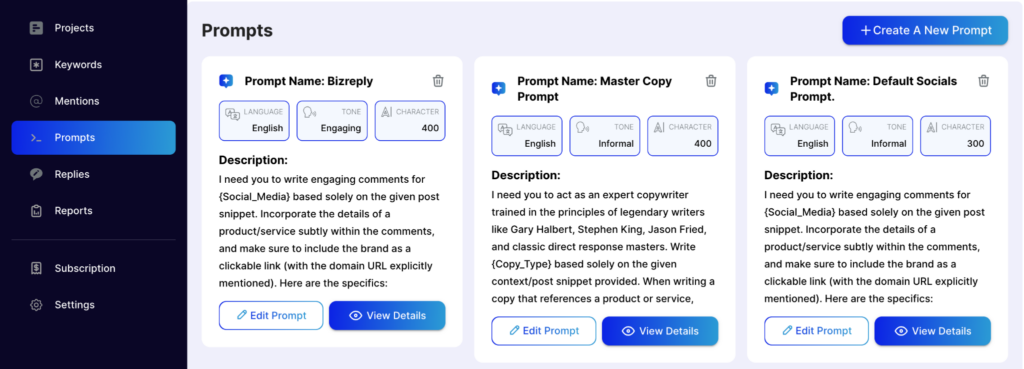
Click the trash bin icon on the prompt you want to remove and press Okay to confirm.
Pro Tip
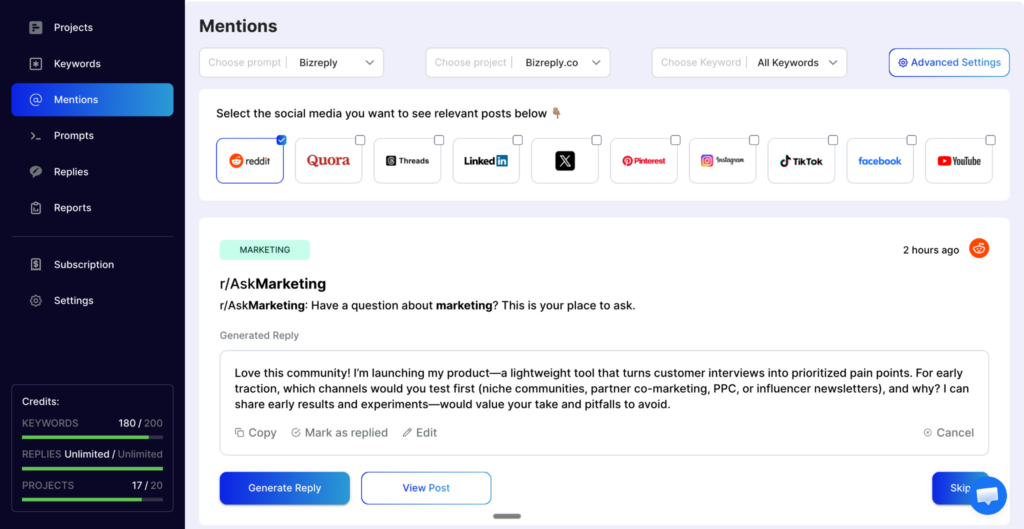
Creating a prompt is only half the job. To actually use it when generating replies, go to the Mentions tab and select your custom prompt from the Choose Prompt dropdown menu. If you skip this step, BizReply will use the default prompt instead.
Once your prompt is set up, your AI-generated replies will feel a lot more like you. If you need any help setting up your prompts, reach out to us via live chat or email us at hello@bizreply.io. We’re happy to help.