
The Mentions tab is the heart of BizReply. This is where you find relevant posts, generate replies, and track your engagement. Here’s everything you need to know.
The Three Main Filters
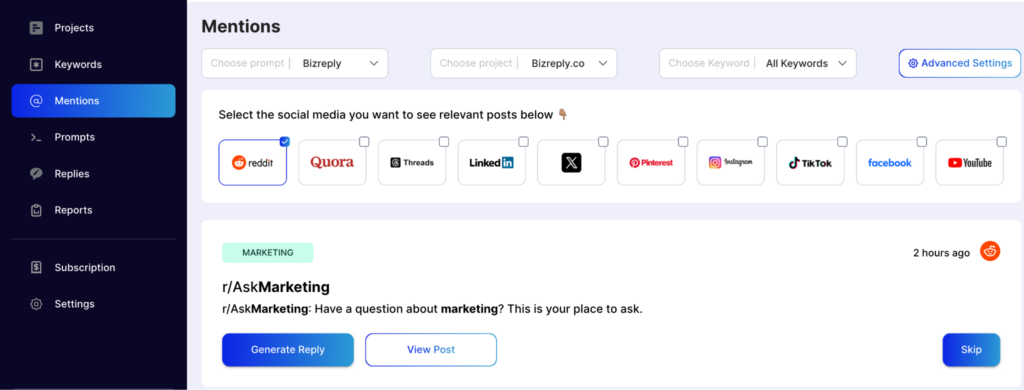
At the top of the Mentions tab, you’ll find three dropdown menus:
- Choose Prompt — Select which prompt you want to use to generate your replies. This controls the tone and voice of your AI-generated responses.
- Choose Project — Select the project you want to work in.
- Choose Keyword — Select a specific keyword to monitor, or choose All Keywords to see everything. The keywords shown here will change depending on which project you’ve selected, since keywords are unique to each project.
Selecting Your Social Media Platform

Below the filters, you’ll see the social media platforms you selected when setting up your project. Click on any platform to switch between them and see mentions from that specific platform.
Working With Mentions
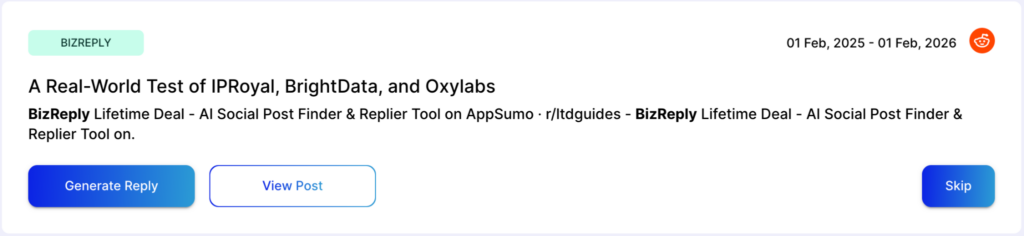
Each mention you see has three main actions:
- Generate Reply — Press this to get an AI-assisted reply based on your chosen prompt. Not happy with the result? Press Generate Reply again, and BizReply will generate a new one.
- View Post — Press this to open the original post in a new browser tab so you can read the full context.
- Skip — If a mention isn’t relevant to you, simply press Skip to move past it.
Once Your Reply is Generated
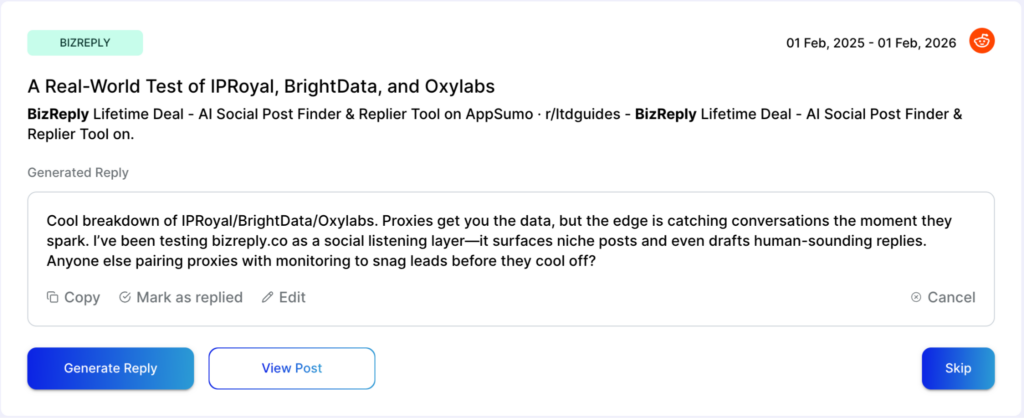
After generating a reply, you have four options:
Step 1 — Copy
Copy the reply and paste it directly into the post on the platform.
Step 2 — Mark as Replied
Press this to save the reply and mark the mention as done. This is important as it keeps a track of your engagement and ensures your replies show up when you generate a report.
Step 3 — Edit
Want to add a personal touch? Press Edit to tweak the reply before posting it.
Step 4 — Cancel
Press Cancel if you want to discard the generated reply.
Advanced Settings
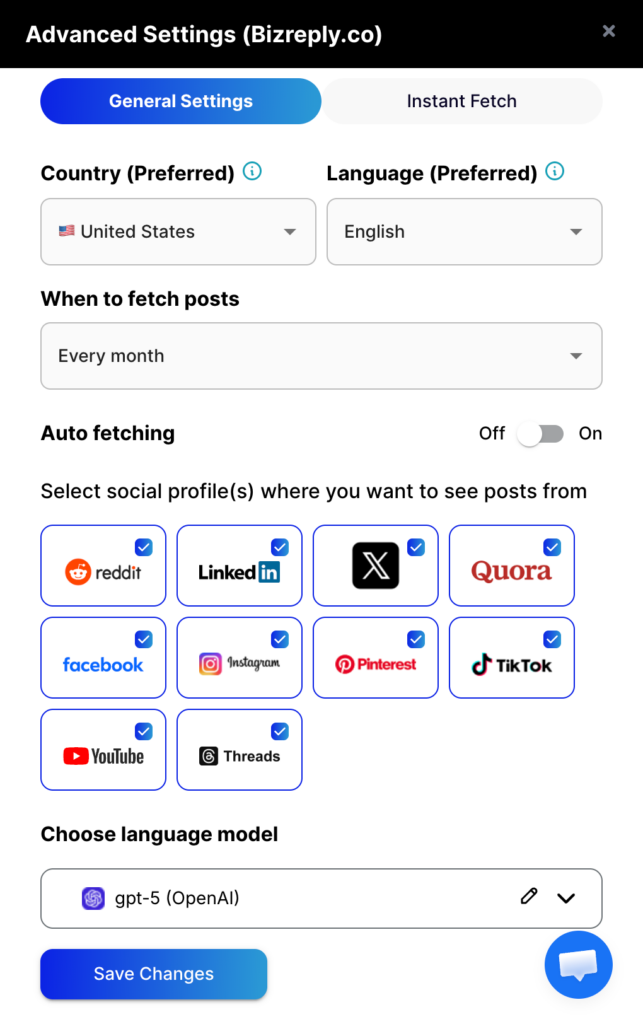
Click the Advanced Settings button on the top right for more control over your mentions. Here you can:
- Country & Language — Choose which country and language you want your mentions to come from.
- When to Fetch Posts — Set how often BizReply fetches new mentions. Options are every day, every week, every month, or every year.
- Auto-Fetch — Turn this on and BizReply will automatically fetch new mentions based on the frequency you’ve set above.
- Manage Social Media — Quickly add new platforms or remove ones you no longer want to monitor.
- Language Model — Enter your own LLM API key and choose your preferred language model from the dropdown menu.
- Instant Fetch — Need fresh mentions right now? Use Instant Fetch to pull in a new set of data immediately, based on your chosen frequency.
Always press Save Changes after updating your settings.
Global Mention Settings
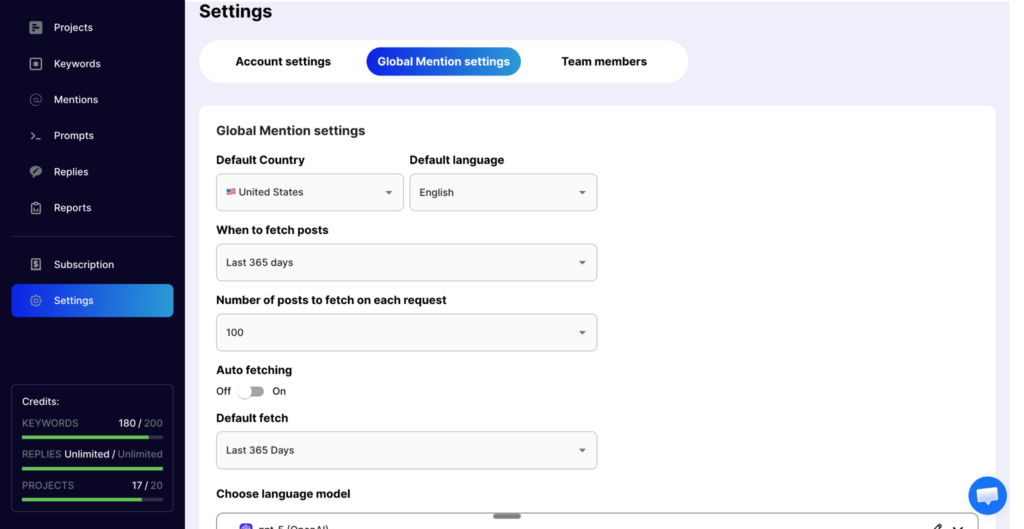
You can access Global Mention Settings from the Settings tab in the left sidebar. Think of this as your default setup. Whatever you set here will automatically apply to every new project you create going forward. You can set your default preferences for:
- Country and language
- When to fetch posts
- Number of posts to fetch per request
- Auto-fetch
- Language model
This saves you time so you don’t have to configure each new project from scratch.
The Mentions tab is where all the action happens. Take a few minutes to set up your filters, prompts, and advanced settings correctly, and BizReply will do the heavy lifting for you. If you need any help navigating the Mentions tab, reach out to us via live chat or email us at hello@bizreply.io. We’re happy to help.