


You want to unlock AI-powered replies in Bizreply.
But first, you need an OpenAI API key.
This guide walks you through the entire process, from grabbing your key to plugging it into Bizreply. Let’s get you set up in the next few minutes.
How to Obtain Your OpenAI API Key
First things first. You need a key to unlock the door. Here’s exactly how to get it.
Step 1: Create an OpenAI Account
Head over to platform.openai.com. Don’t have an account yet? Click “Sign up” and create one. Already registered? Just log in. It takes about 30 seconds.
Step 2: Set Up Billing
Free accounts hit limits fast. You need to add a payment method to get the good stuff. Here’s how.
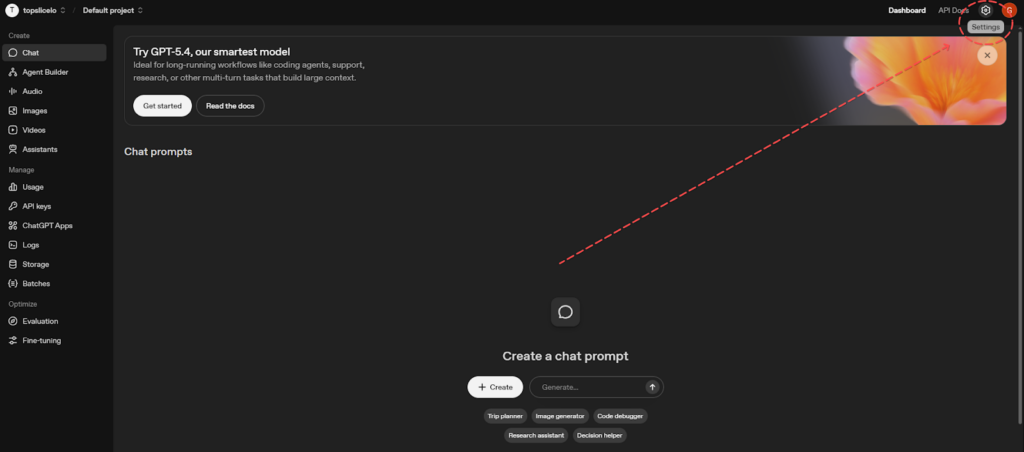
Navigate to Billing Settings
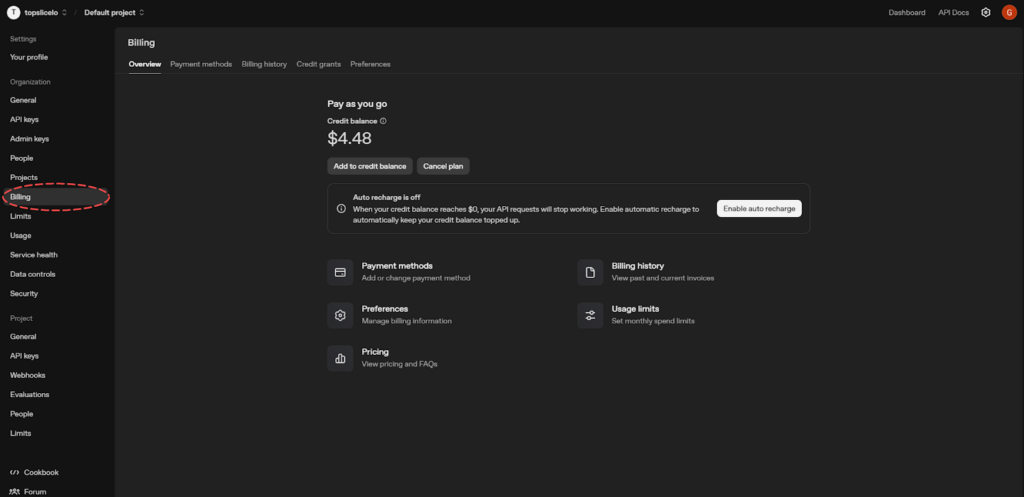
Look at the left sidebar. Find “Settings” and click it. Then select “Billing” from the menu. You’re now in the money zone.
Add Your Payment Method
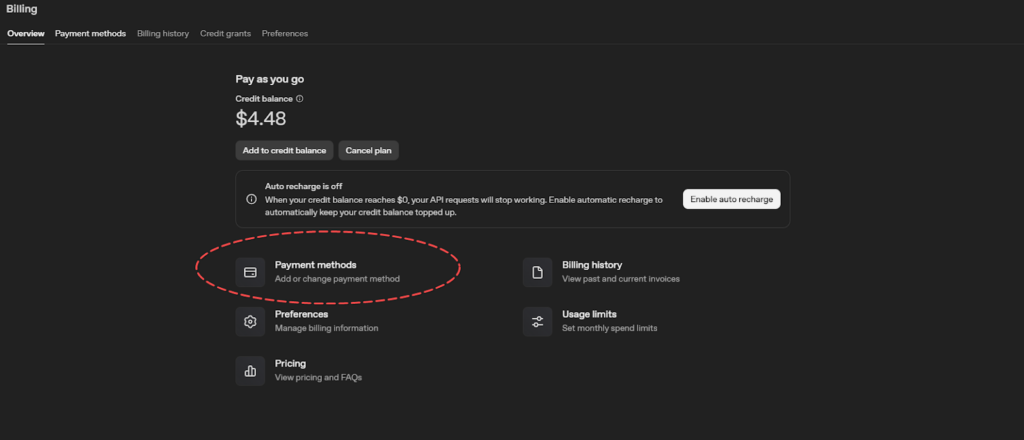
Click “Add payment method.” Enter your credit card details. Don’t worry, OpenAI only charges you for what you use.
But here’s a pro tip: set a monthly usage limit. This prevents any nasty surprises on your bill. You stay in control.
Note: Bizreply recommends using a paid API key. Free keys have strict rate limits and often hit capacity. A paid plan gives you faster responses and way more reliability. Trust us on this one.
Step 3: Access the API Keys Page
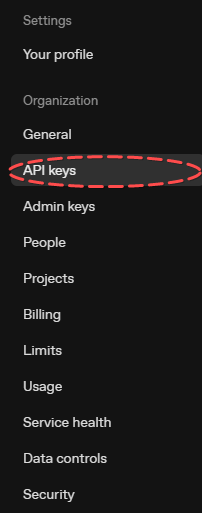
Billing is set up. Now let’s grab that key. Click on “API keys” in the dashboard sidebar. Can’t find it? No problem. Click your profile icon in the top-right corner. A dropdown appears. Select “API keys” from the list. You’re now in the control center.
Step 4: Generate a New Secret Key

See that button with the plus icon? It says, “Create a new secret key.” Click it. A dialog box pops up. Give your key a descriptive name, something like “Bizreply Integration,” so you remember what it’s for. Then click “Create secret key.”
Step 5: Save Your API Key Immediately
This part is critical. OpenAI displays your secret key only once. You see it now, or you lose it forever. Copy that key immediately. Paste it into a password manager. Or store it in a secure environment variable.
Do NOT just leave it on your clipboard. If you lose it, you’ll have to generate a brand new one. OpenAI cannot retrieve it for you. That’s how security works.
How to Add Your API Key to Bizreply
You’ve got the key. Now let’s put it to work. Adding it to Bizreply is dead simple.
Step 1: Open Bizreply Settings
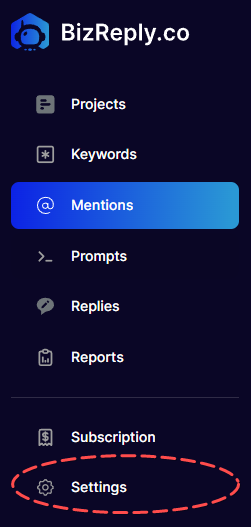
Log in to your Bizreply dashboard. Look for the gear icon or “Settings” link, usually it is in the left-hand bar. Click it.
Step 2: Find the API Integration Section
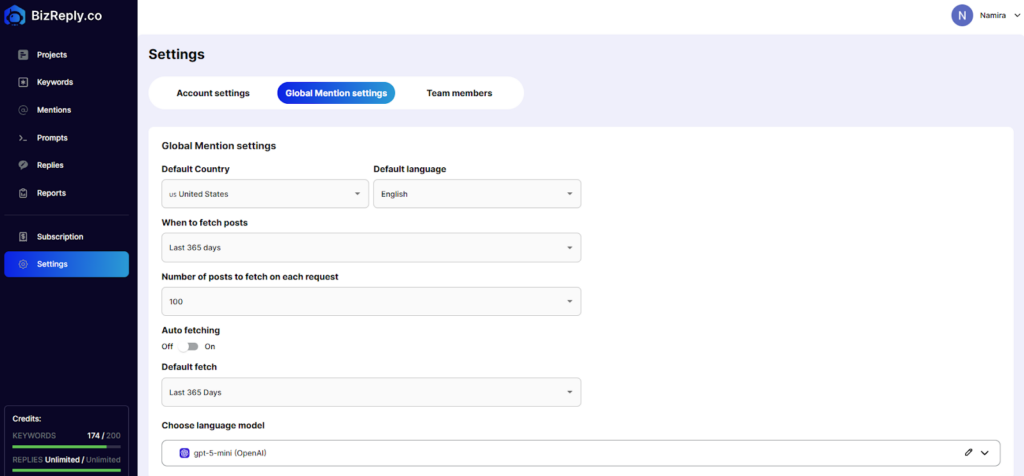
Go to “Global Mention Settings,” and you will find “Choose language model”. Press the pen icon.
Step 3: Paste Your OpenAI API Key
Select the field labeled “AI Key.” Click inside it. Paste the key you copied earlier. Double-check for extra spaces at the beginning or end. Those tiny spaces break everything.
Step 4: Save and Test
Hit “Save Changes”. And that’s it. Your API key is saved.
Note: Your API key is perfectly confidential inside Bizreply, and there are a 100% no chance of it being leaked, so you can rest easy.
Troubleshooting Common Issues
Sometimes things don’t go as planned. Here’s how to fix the usual suspects.
“Invalid API Key” Error
You probably copied it wrong. Or there are extra spaces. Go back to OpenAI. Generate a fresh key. Copy it carefully this time.
Rate Limit Errors
You’re hitting OpenAI’s usage caps. This happens with free keys. Upgrade to a paid plan. Or wait a few minutes and try again.
Key Not Working in Bizreply
Check your plan. Make sure your OpenAI account has the funds in it. Still stuck? Contact Bizreply support at hello@bizreply.co or message us at live chat.
You’re All Set
That’s it. You now have a working OpenAI API key connected to BizReply. Start generating replies. Save hours every week. And let AI handle the heavy lifting while you focus on what matters.