

Keywords are what BizReply uses to find relevant posts and mentions across social media. Here are two ways to add them.
Method 1 — Via the Keywords Tab
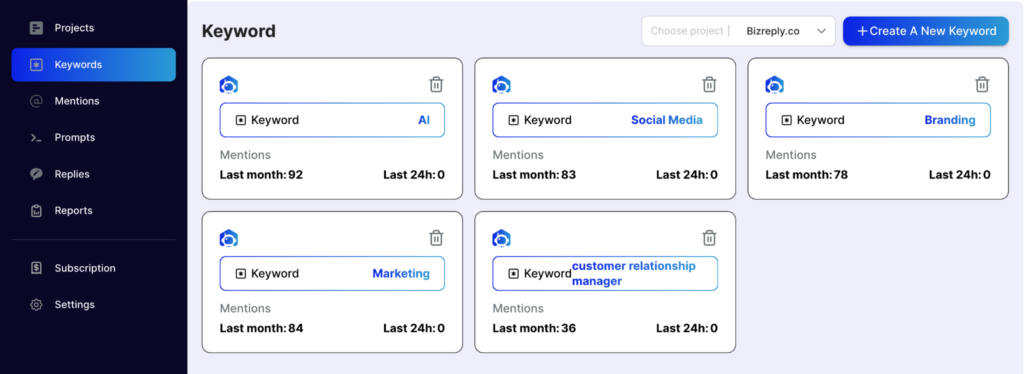
Step 1 — Select Your Project
Go to the Keywords tab from the left sidebar. On the top right, use the Choose Project dropdown to select the project you want to add keywords to.
Step 2 — Create a New Keyword
Click the +Create a New Keyword button. You can either let BizReply suggest AI-assisted keywords or type in your own.
Step 3 — Add Negative Keywords (Optional)
Negative keywords filter out posts you don’t want to see. For example, if your brand is called “Apple” and you sell tech products, you could add “fruit” as a negative keyword to avoid unrelated posts.
Step 4 — Save
Press Add Keyword and then click Save Keyword. Your keyword is now active.
Method 2 — Via the Projects Tab
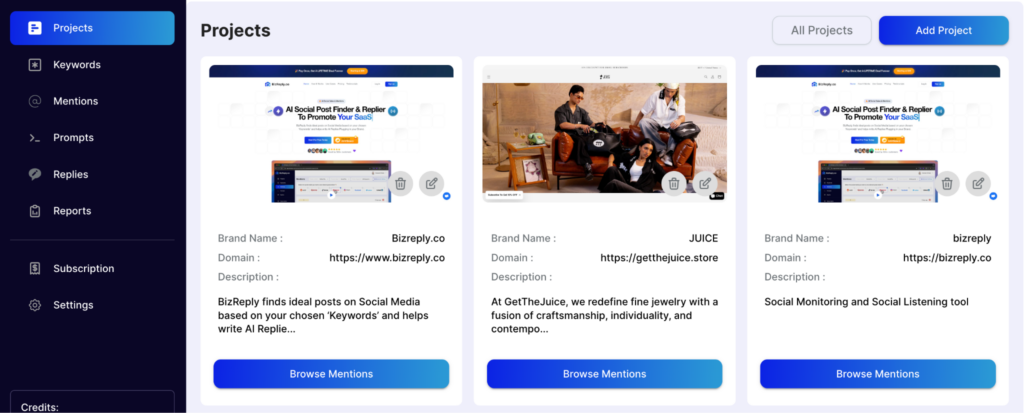
Step 1 — Edit Your Project
Go to the Projects tab and click the Edit button on the project you want to update.
Step 2 — Update Brand Details (Optional)
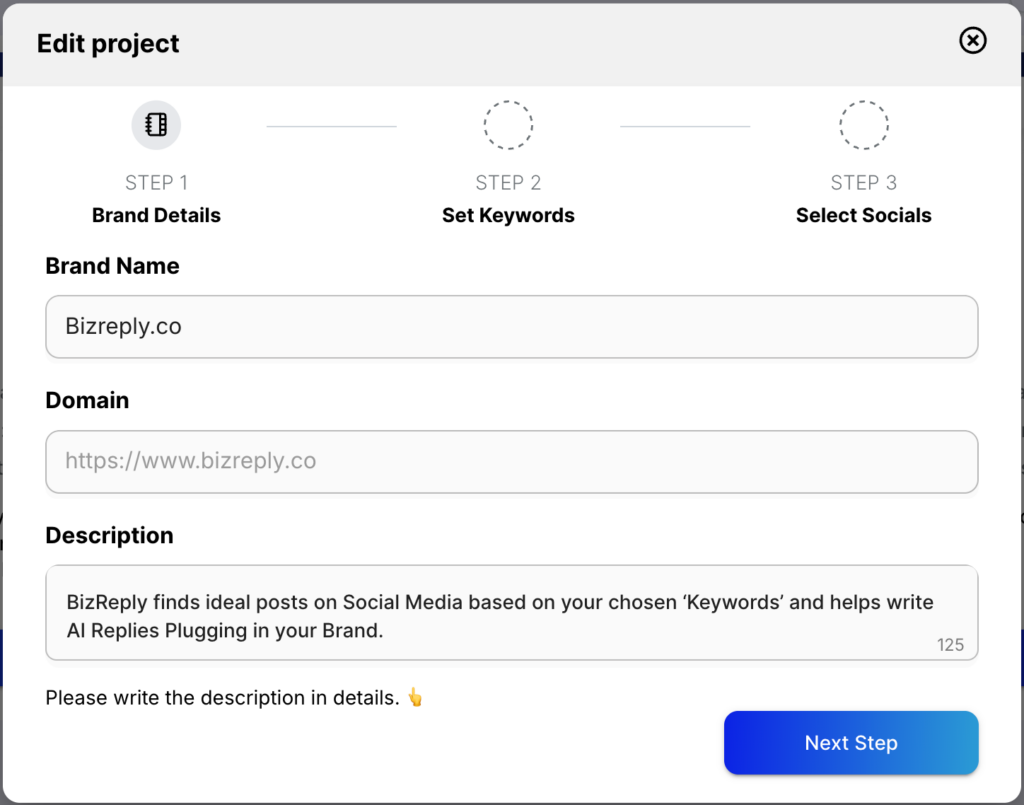
You can update your brand name or description here. Otherwise, move to the next step.
Step 3 — Add Keywords
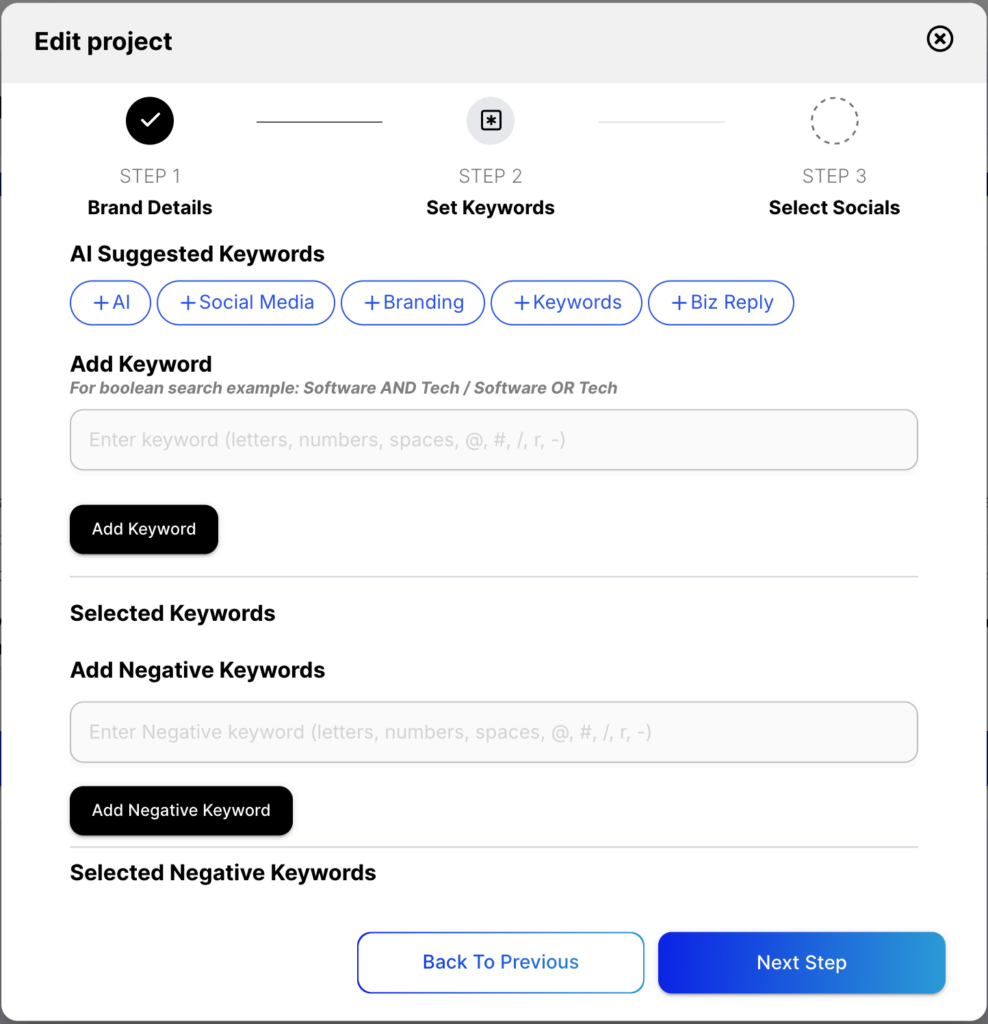
Just like Method 1, you can choose AI-assisted keywords or add your own. Add negative keywords if needed.
Step 4 — Manage Socials
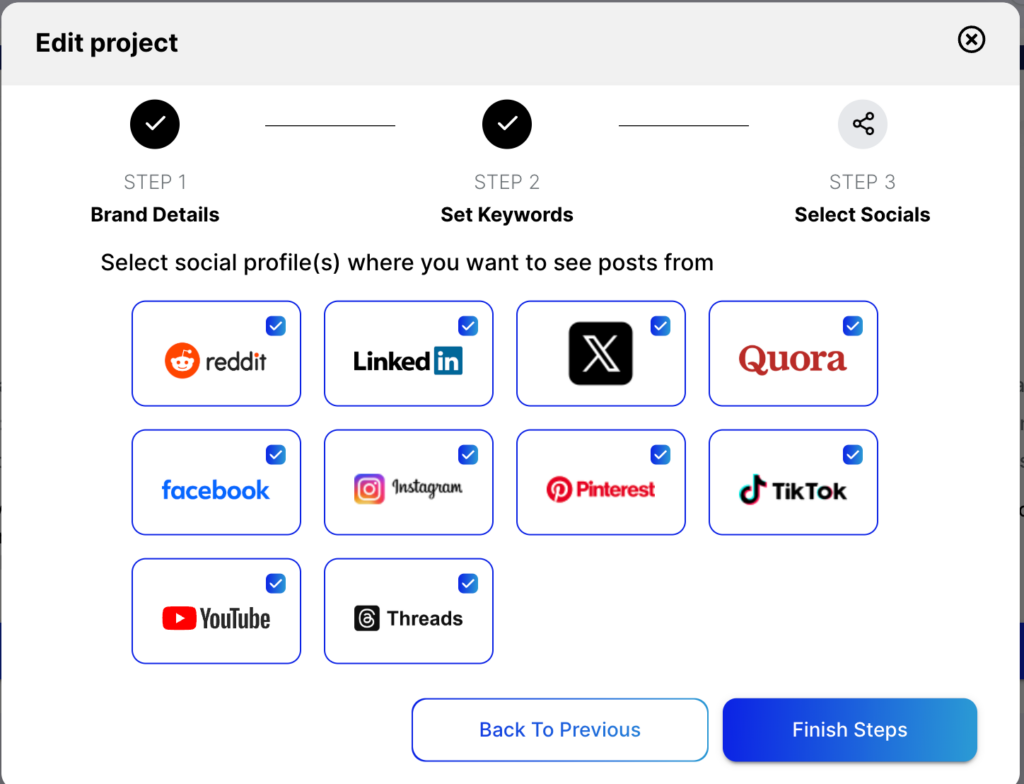
Add or remove the social media platforms you want to track. Press Finish Steps when you’re done.
Once finished, click Go to Mentions Page to start seeing your results right away.
How to Delete a Keyword
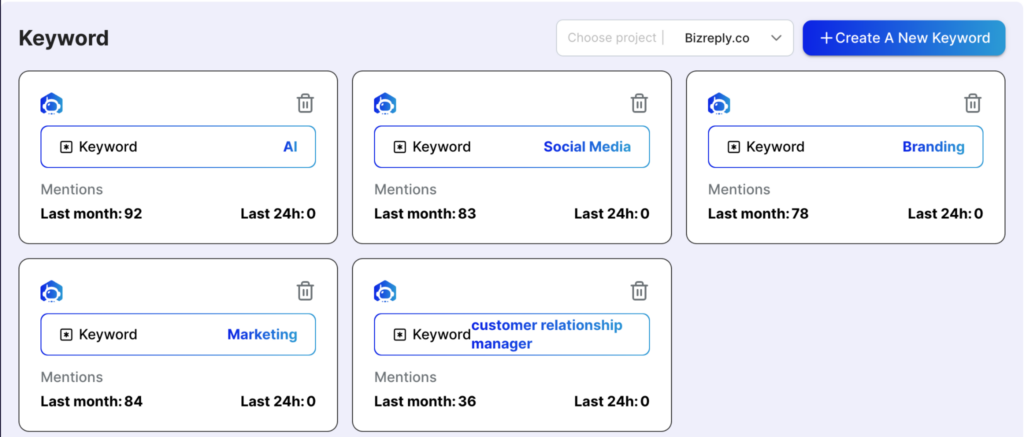
To delete a keyword, go to the Keywords tab, find the keyword you want to remove, and click the bin icon on top of it. Press “ok” on the pop-up above. That’s it.
Adding the right keywords makes a big difference in the quality of mentions you find. Take a moment to set them up carefully. If you need any help, reach out to us via the live chat or email us at hello@bizreply.io. We’re happy to help.