

BizReply lets you invite your team to collaborate on your projects. You can assign different roles depending on what level of access each person needs.
How to Invite a Team Member
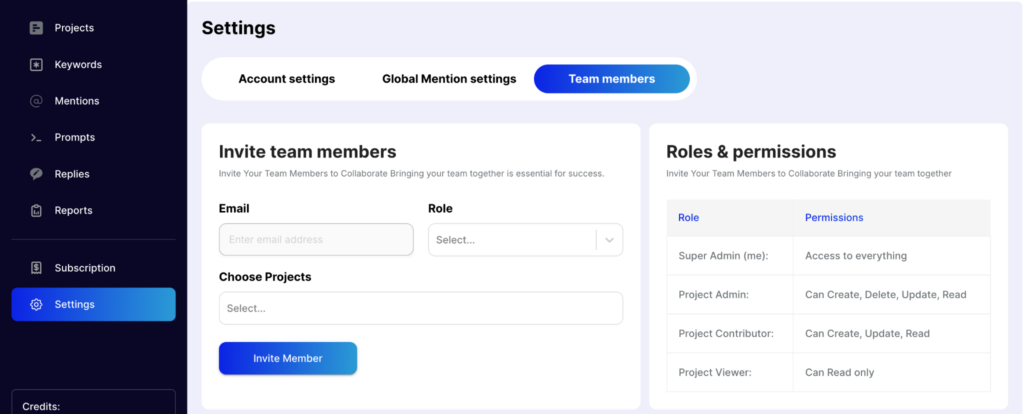
Step 1 — Go to Settings
Click on Settings from the left sidebar and select the Team Members tab.
Step 2 — Enter Their Details
Fill in your team member’s email address, assign them a role, and choose which project you want to invite them to.
Step 3 — Assign a Team (Optional)
You can give your team a name and use the Team Selection dropdown to organise members into different teams.
Step 4 — Send the Invite
Once everything is filled in, send the invitation. Your team member will receive an email to join the project.
Understanding the Four Roles
- Super Admin — This is you. You have full access to everything on BizReply.
- Project Admin — Can generate replies, delete mentions, update advanced settings, and view posts.
- Project Contributor — Can generate replies, update advanced settings, and view posts. Cannot delete mentions.
- Project Viewer — Can only view mentions. Cannot generate replies or make any changes.
Managing Existing Team Members
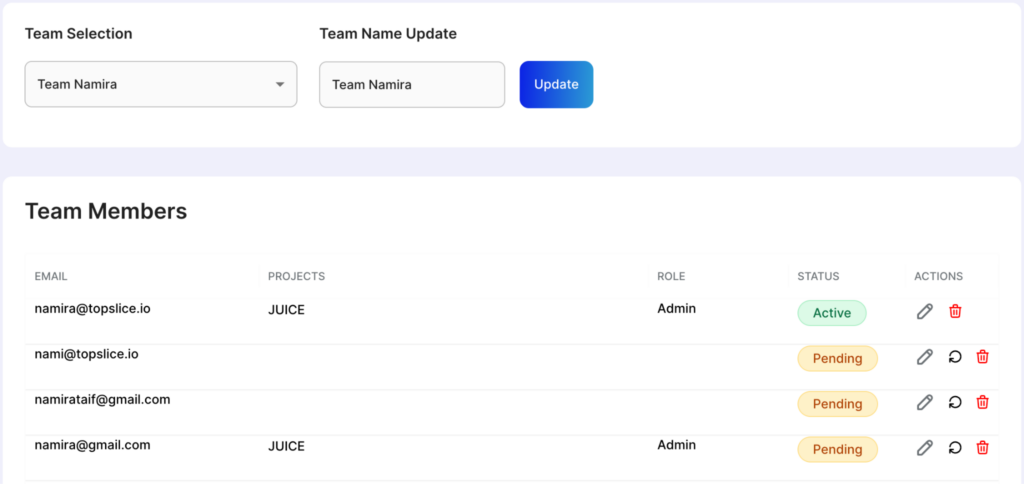
Below the invite section, you’ll find the Team Members list. Here you can see all the members you’ve invited, along with their email, assigned project, role, and current status, whether they’ve accepted the invite or it’s still pending.
From this list, you can:
- Edit their details and update their role or assigned project
- Delete their invitation
- Resend their invitation if they haven’t accepted it yet
Having the right people on the right projects makes collaboration a lot smoother. If you need any help setting up your team, reach out to us via live chat or email us at hello@bizreply.io. We’re happy to help.